Dark Mode
Enabling Dark Mode
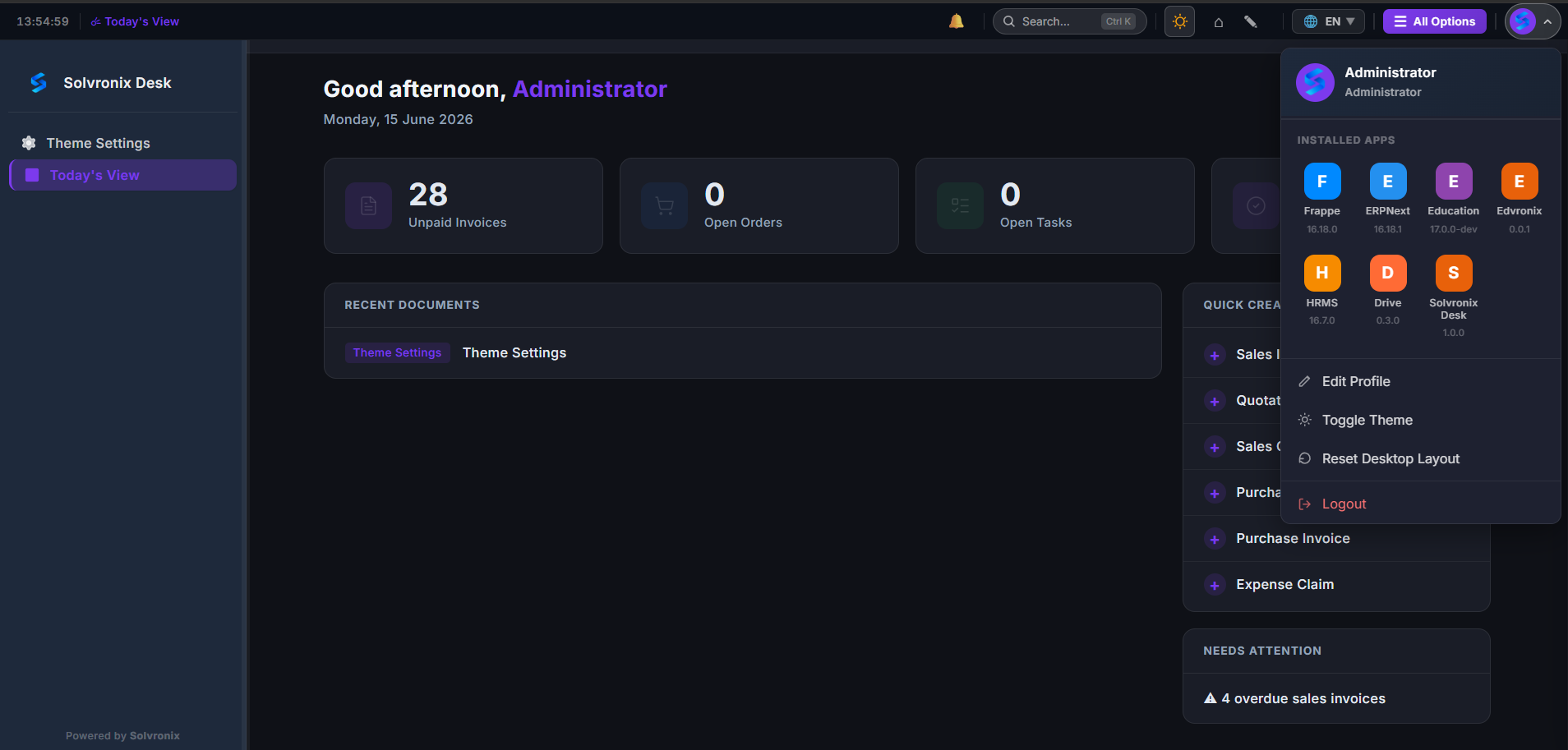
Click your profile avatar in the top-right corner and select Toggle Theme from the dropdown. The entire interface switches instantly — no page reload required.
You can also enable Start in Dark Mode in Theme Settings so the desk always opens in dark mode by default.
How It Works
Dark mode applies a dark surface palette across all pages while keeping your brand and accent colors intact:
| Element | Light Mode | Dark Mode |
|---|---|---|
| Page background | Light tint of brand color | Deep dark neutral |
| Card / form background | #FFFFFF | Dark surface |
| Sidebar | Your brand color | Darker variant of brand color |
| Buttons | Your accent color | Your accent color (unchanged) |
| Text | Dark | Light |
| Borders | Light gray | Subtle dark border |
Toggle Theme Menu
The user menu (top-right avatar) provides:
| Option | Action |
|---|---|
| Toggle Theme | Switch between light and dark immediately |
| Reset Desktop Layout | Restore default workspace layout |
| Edit Profile | Open your Frappe user profile |
| Logout | Sign out |
Per-User Setting
Dark mode preference is saved per user. Each user can independently toggle it without affecting anyone else on the system.
Start in Dark Mode
To have the desk open in dark mode by default for all users:
- Open Theme Settings
- Check Start in Dark Mode in the Features section
- Click Save
Works on Every Page
Dark mode applies to the Frappe desk, all module pages, forms, lists, the login page, and the command palette.