Branding
The Theme Settings doctype is the single place to control all branding for your Frappe/ERPNext site. Open it with Ctrl+K → type Theme Settings.
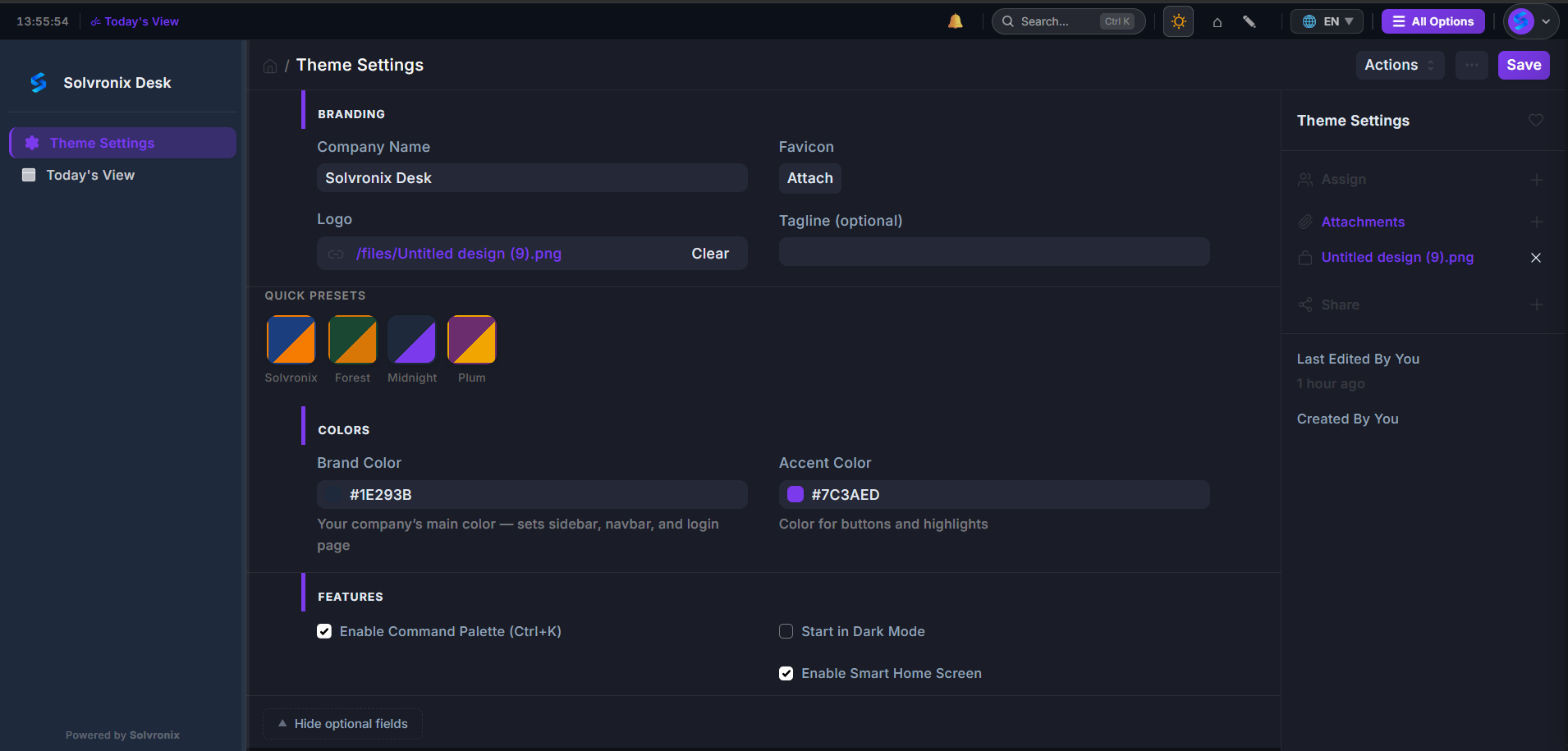
What You Can Customise
| Field | Where It Appears |
|---|---|
| Company Name | Navbar — replaces the default "ERPNext" label |
| Company Logo | Navbar and login page |
| Favicon | Browser tab icon |
| Tagline | Optional subtitle shown below your logo |
| Brand Color | Sidebar background, navbar, login page, page background tint |
| Accent Color | Buttons, active sidebar item, highlights, links |
Setting Your Company Name
Enter your organisation's name in the Company Name field. This replaces "ERPNext" everywhere it appears in the interface.
Uploading Your Logo
Click the Logo field attachment button and upload your logo file:
| Format | Recommended |
|---|---|
| PNG with transparent background | Best — works on any background colour |
| SVG | Ideal for logos that need to scale |
| JPG | Avoid — no transparency support |
Recommended size: 200px wide. The navbar constrains the display size automatically.
Favicon
Upload a small square icon (ideally 32×32 or 64×64 px PNG) to the Favicon field. This appears in the browser tab when users have your site open.
Tagline
The optional Tagline field adds a subtitle line below your logo — e.g. "School Management System" or "Powered by ERPNext".
Saving
Click Save in Theme Settings. The theme applies instantly — no rebuild or restart required. All users see the updated branding on their next page load.
Resetting to Default
To reset to the default Solvronix branding, clear all fields in Theme Settings and click Save.