Slim Sidebar
What It Is
Solvronix Desk replaces the default wide Frappe sidebar with a 64px icon rail — similar to how Slack, VS Code, and modern SaaS apps structure their navigation.
All Options Panel
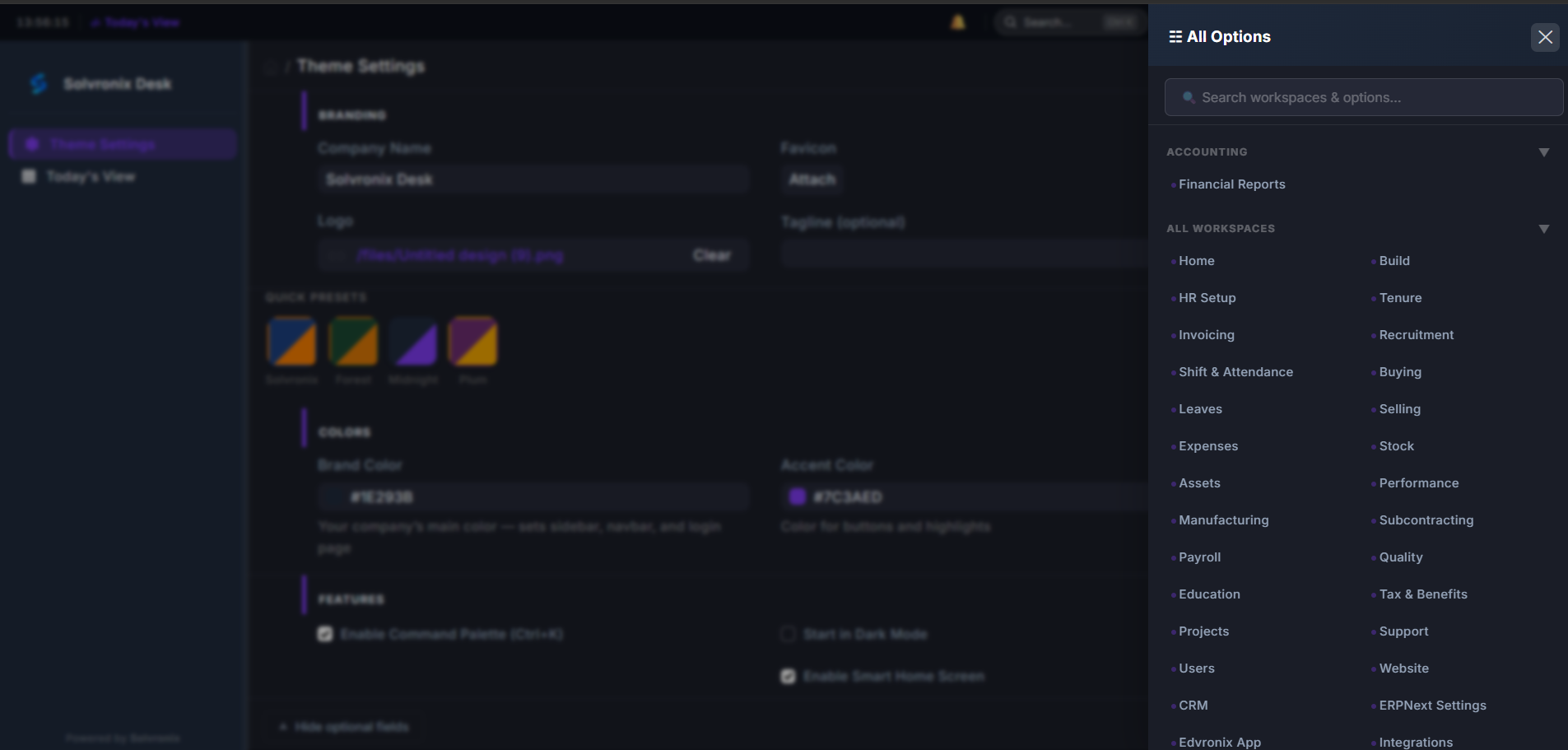
Click All Options in the top-right navbar to open the full workspace navigator. It shows:
- A search box to filter workspaces instantly
- All available workspaces grouped by category (Accounting, HR, Manufacturing, etc.)
- Quick access to any module without navigating the sidebar
Sidebar Behavior
| State | Width | What You See |
|---|---|---|
| Collapsed (default) | 64px | Module icons only |
| Expanded (on click) | 240px | Icons + module names |
Click any icon to expand the sidebar and see labels. The sidebar state is saved per user.
Why It Matters
The default ERPNext sidebar is always wide — it takes up significant horizontal space even when you're not using it. The 64px icon rail keeps the sidebar accessible at all times while giving the content area maximum space. Combined with the All Options panel, you never need to hunt through menus.
Sidebar Colors
The sidebar background uses your Brand Color from Theme Settings. The active module indicator uses your Accent Color. Both update automatically when you save new colors in Theme Settings.
Module Icons
Each Frappe module has a default icon in the sidebar. To control which modules appear, manage your Workspace settings in Frappe — the sidebar reflects your workspace configuration.