Command Palette
The command palette lets you navigate anywhere in your Frappe/ERPNext system by typing — no menu hunting, no memorising paths.
Opening the Command Palette
Press Ctrl+K (or Cmd+K on Mac) from anywhere in the desk.
Quick Actions
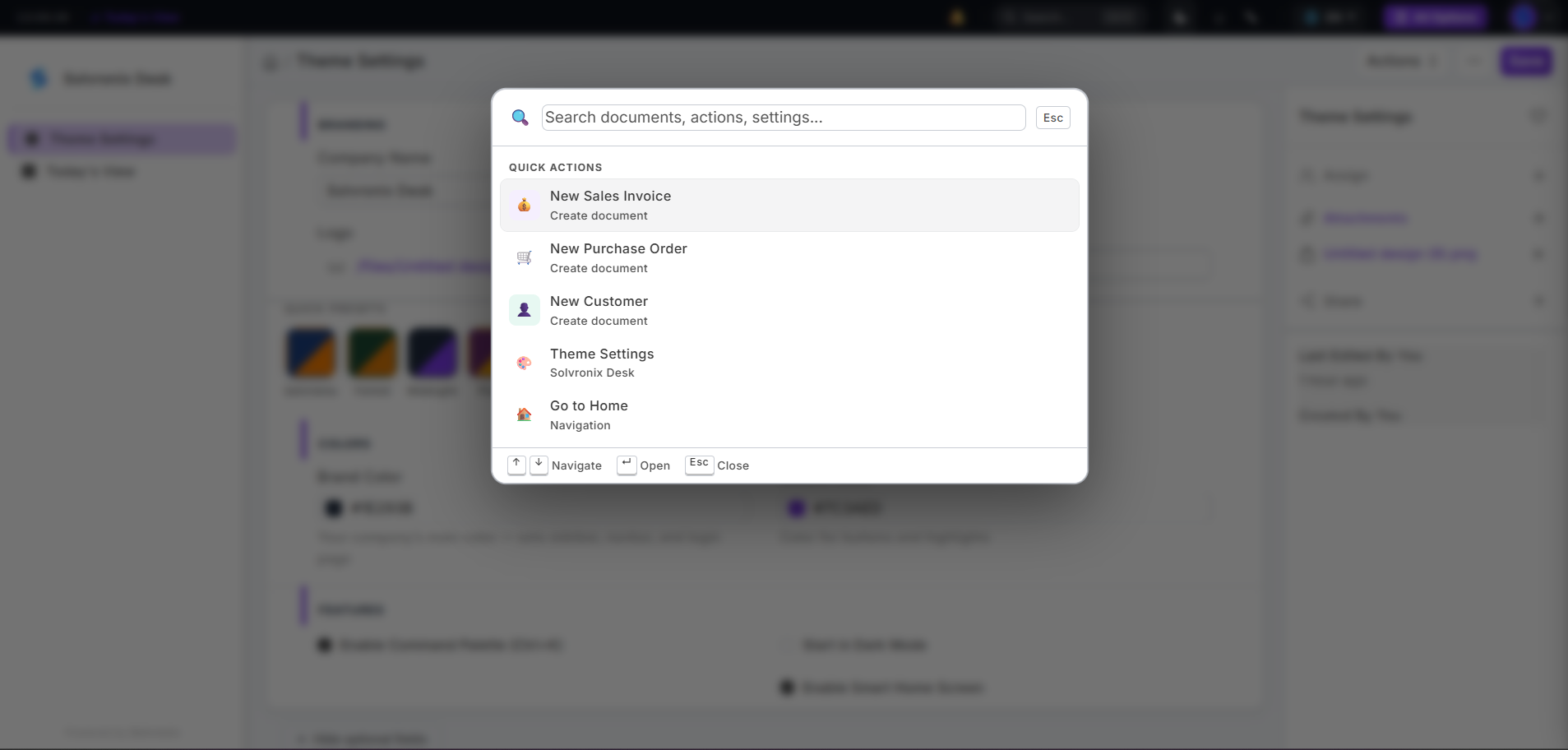
The command palette opens with a Quick Actions section showing the most common document creation shortcuts:
- New Sales Invoice
- New Purchase Order
- New Customer
- Theme Settings
- Go to Home
These appear immediately without typing anything — one keystroke to create your most-used documents.
What You Can Search
Type any part of what you're looking for:
| What You Type | What Opens |
|---|---|
| A document name (e.g. Sales Invoice) | Opens the list view for that doctype |
| A record name (e.g. INV-0042) | Opens that specific document |
| A setting (e.g. Theme Settings) | Opens that settings page |
| A module name (e.g. Accounts) | Opens that module |
| Partial matches | Results filter as you type |
Keyboard Navigation
| Key | Action |
|---|---|
Ctrl+K / Cmd+K | Open command palette |
↑ / ↓ | Move through results |
Enter / Open | Open the selected item |
Esc | Close the palette |
Enabling / Disabling
The command palette is controlled by the Enable Command Palette (Ctrl+K) toggle in Theme Settings → Features. It is enabled by default after installation.
Why It Matters
The default ERPNext navigation requires you to know which module a doctype lives in, then navigate through nested menus. The command palette eliminates that — press Ctrl+K, type the name, press Enter. Works for any doctype, any record, any settings page in seconds.